File a Five-Year Review
eRules Help
File a Five-Year Review
Agencies are required to review administrative rules every five years. Notices of five-year review and continuation are filed in eRules.
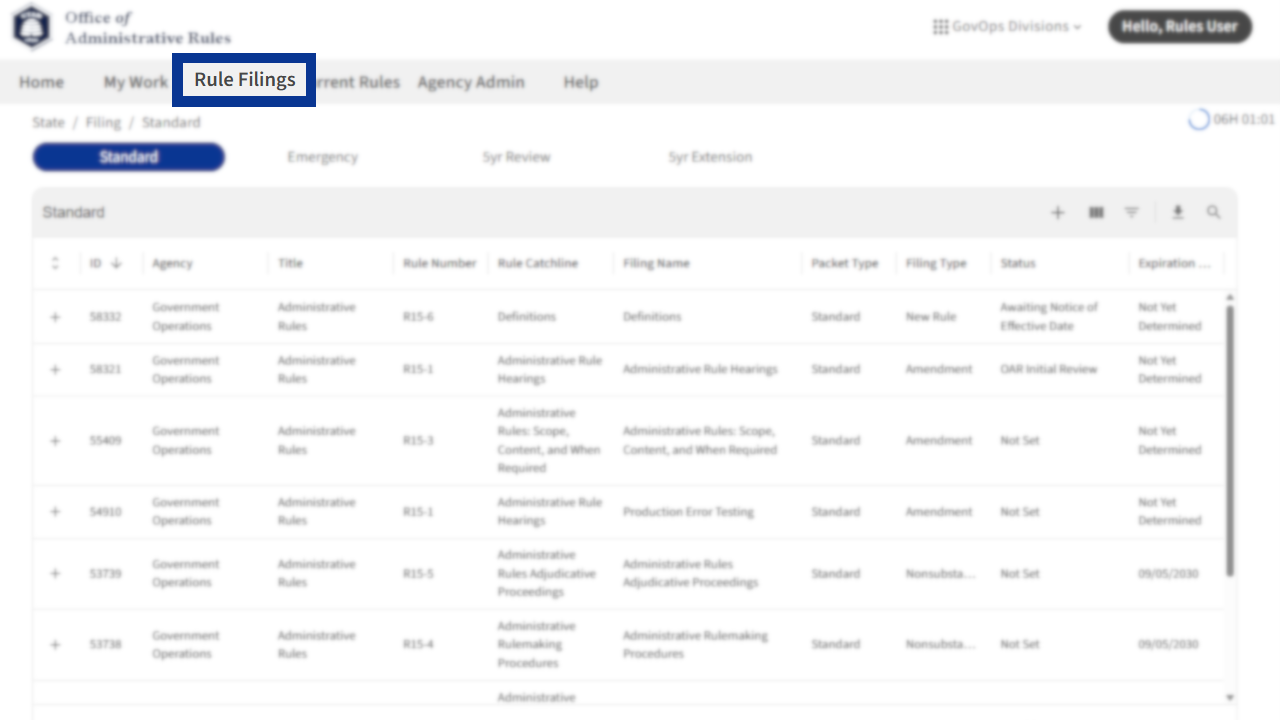
1. After logging in to eRules, select the Rule Filings tab.
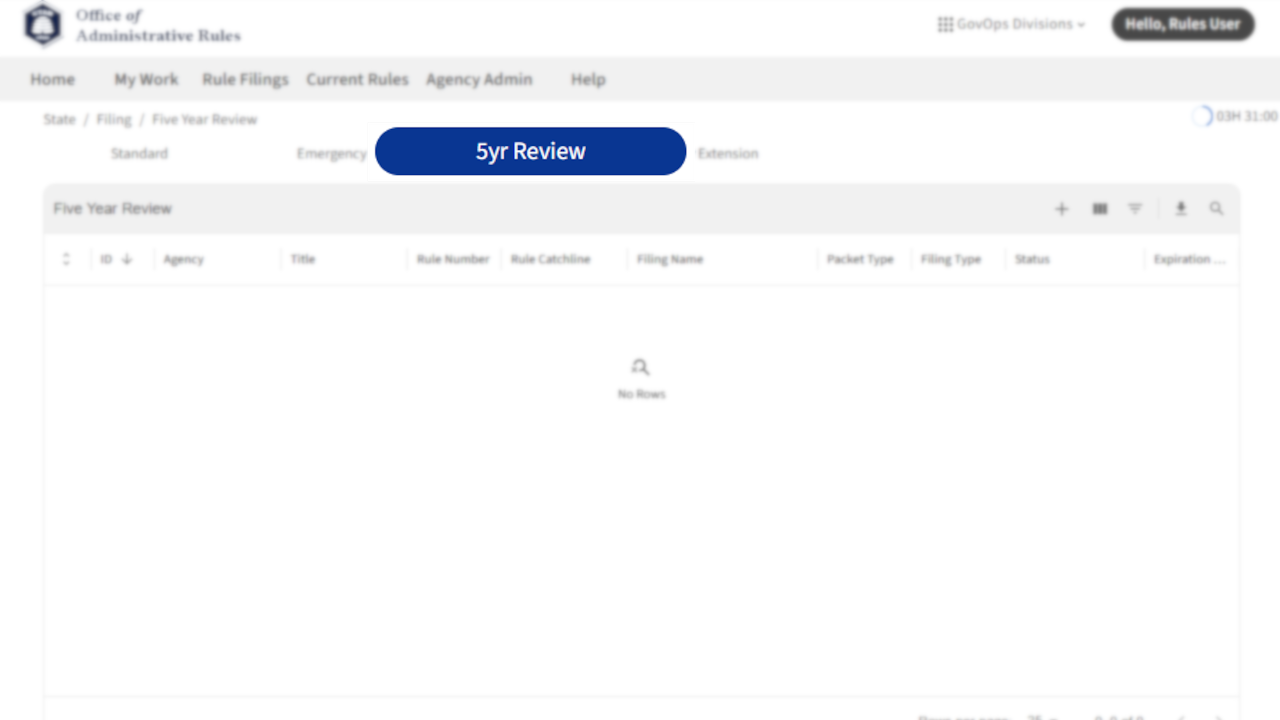
2. Select 5yr Review above the list of rule filings.
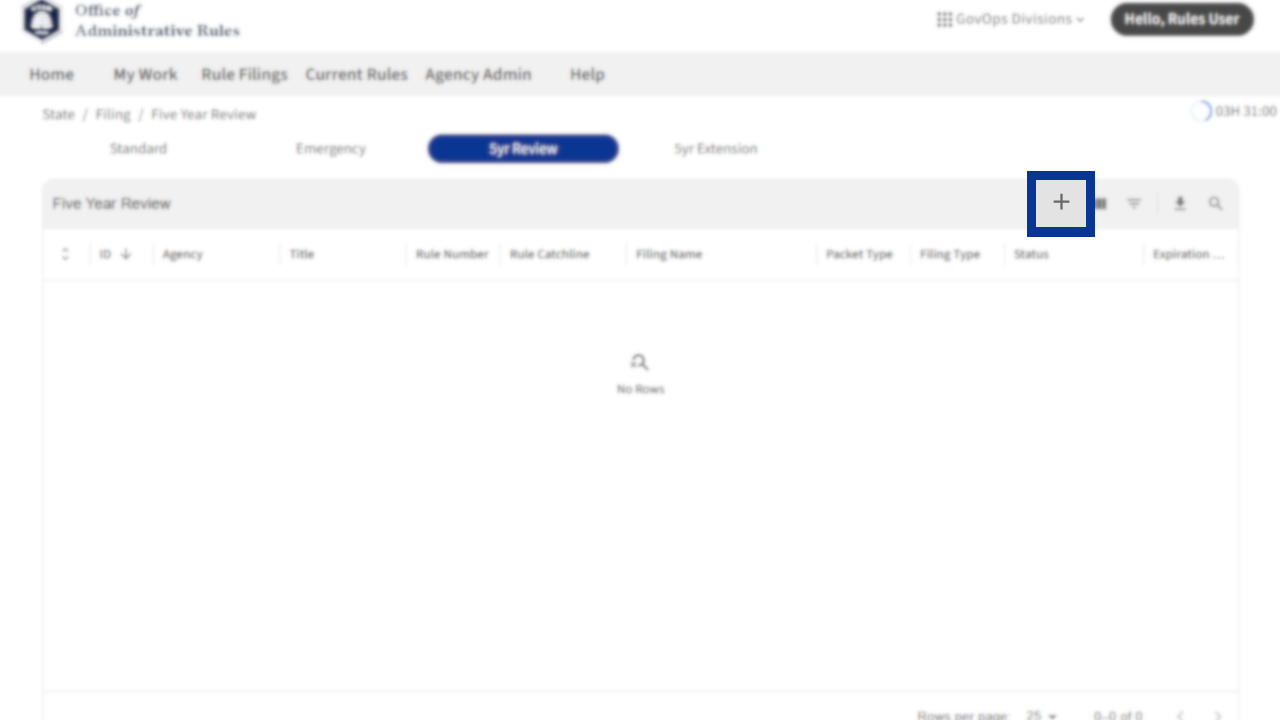
3. Select the + button on the top right of the filing list.
4. Filing Name / Catchline will automatically fill based on later selections.
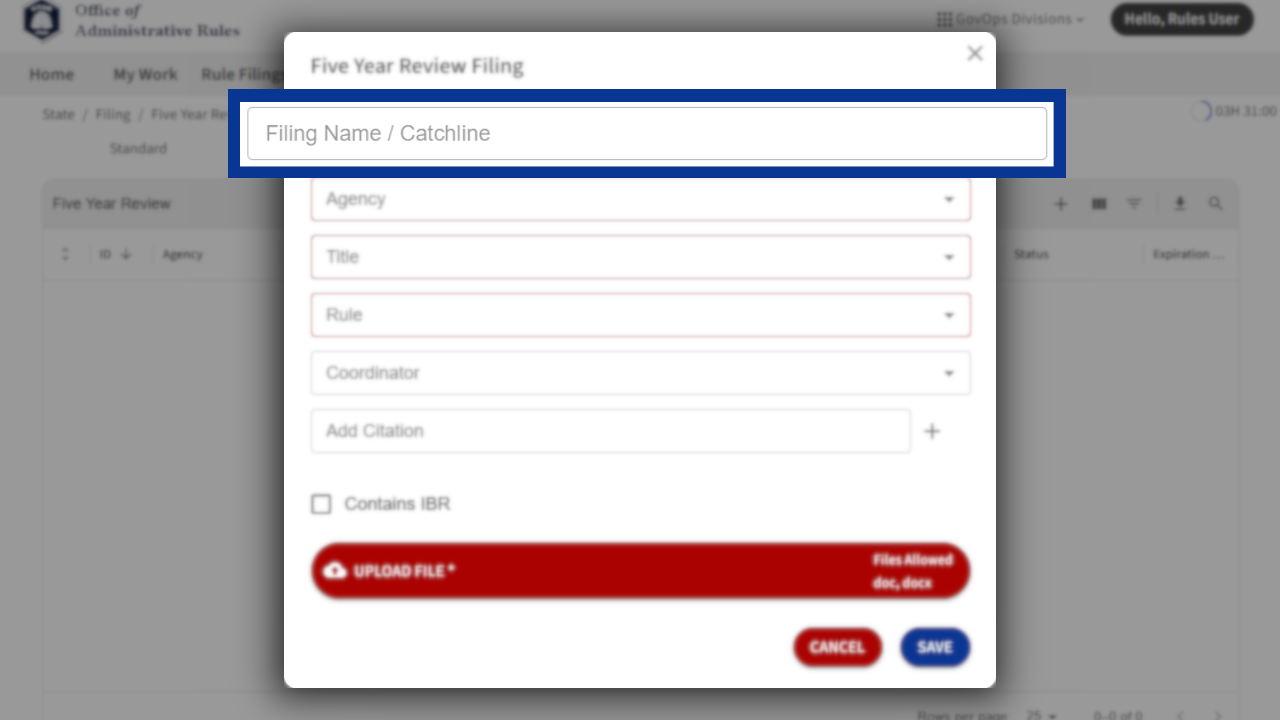
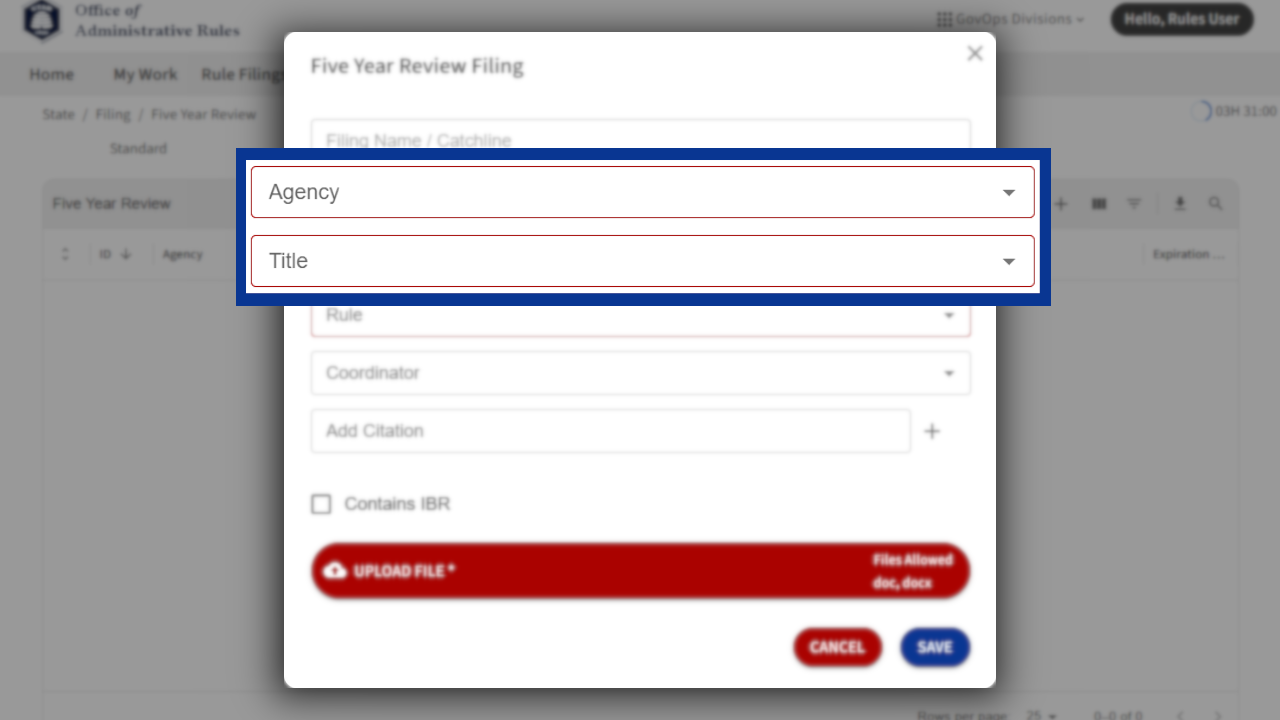
5. Select the agency, generally the rulemaking department, under the Agency drop-down menu. After selecting the agency, the Title drop-down menu will populate with applicable titles under that agency. Select the desired title for the rule filing.
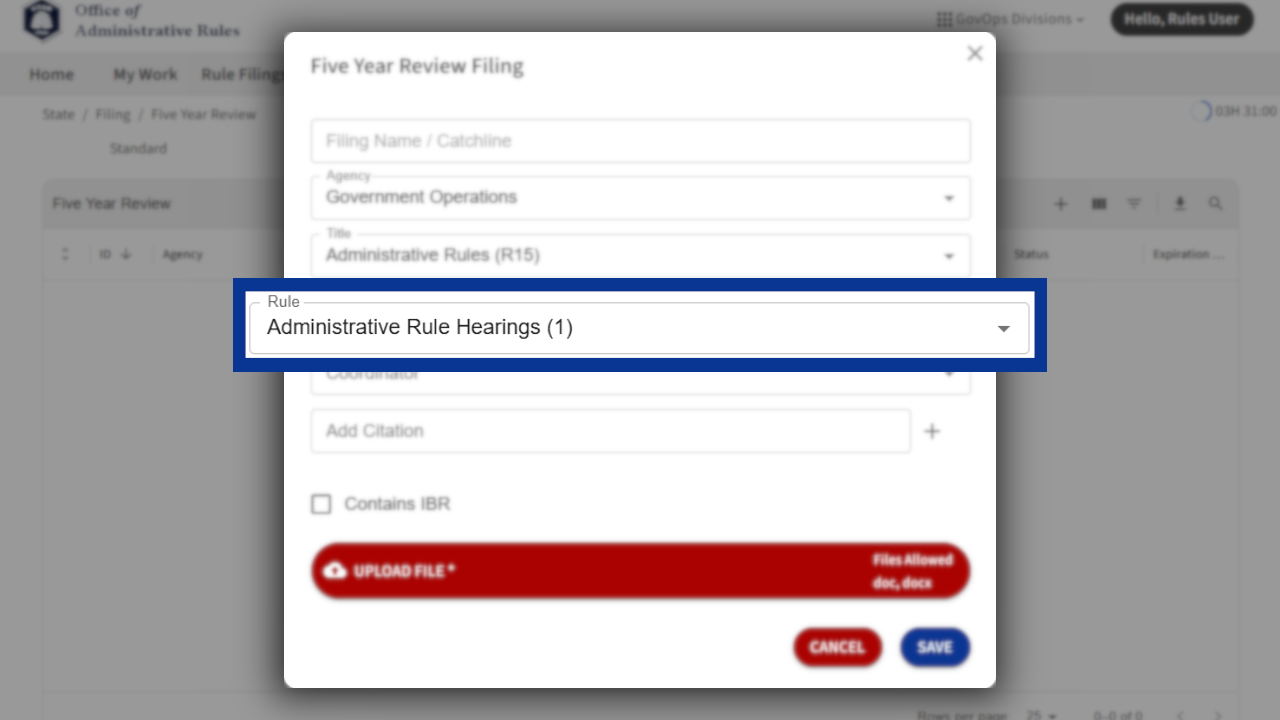
6. The Rule drop-down menu will populate with the current rules under the title. Select the rule to which this five-year review applies.
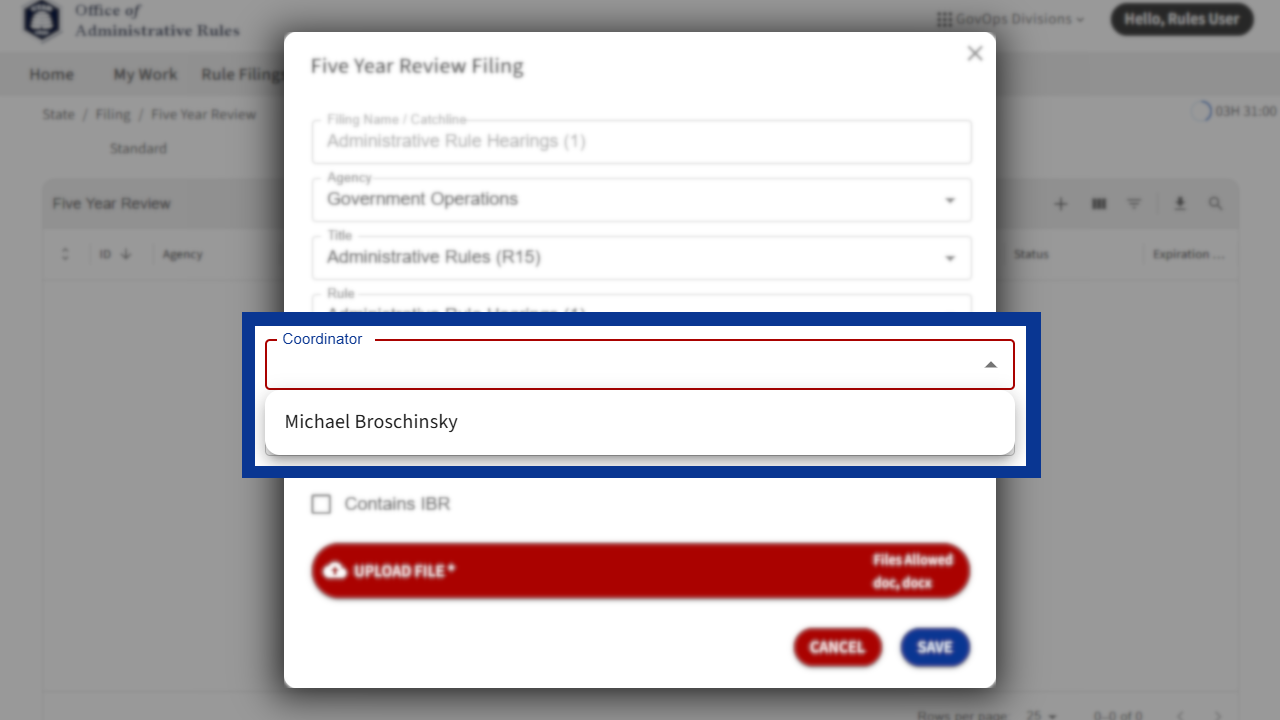
7. Select the proper contact under the Coordinator drop-down menu.
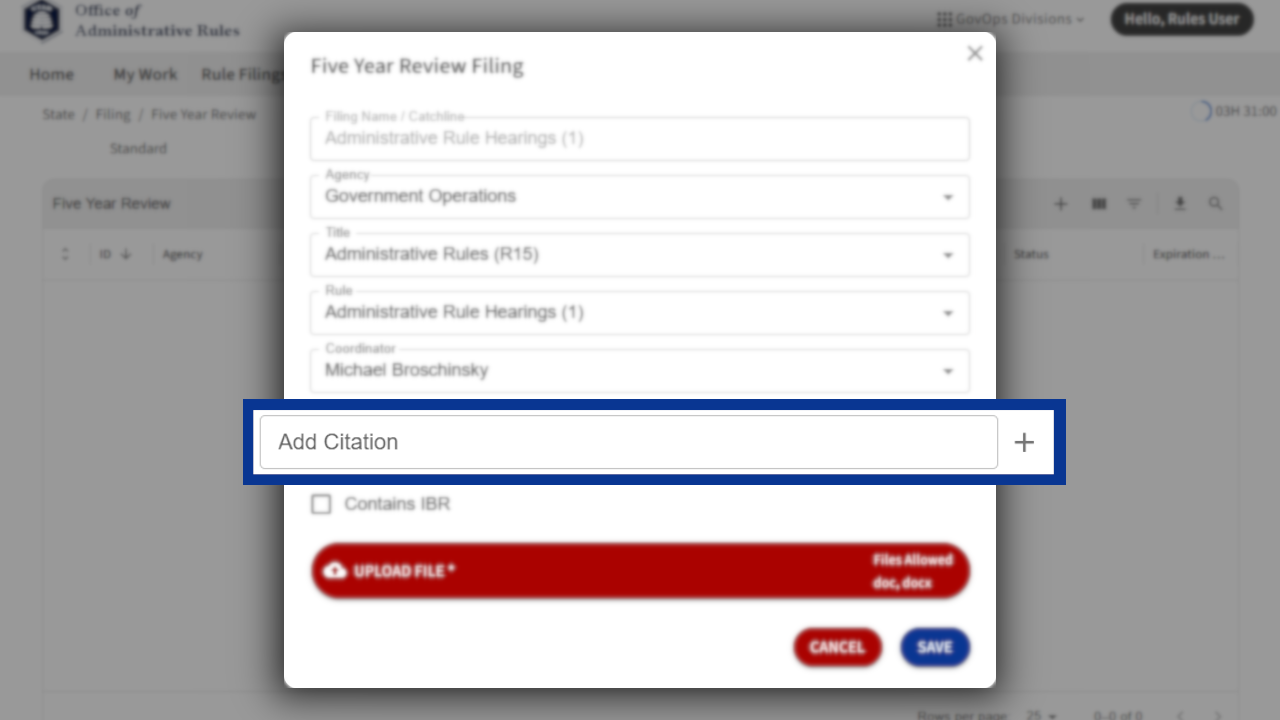
8. While a five-year review cannot change citations, ensure that the existing citations are accurate and formatted correctly in the menu.
9. Since IBRs cannot be modified by a five-year review, leave the Contains IBR box as is.
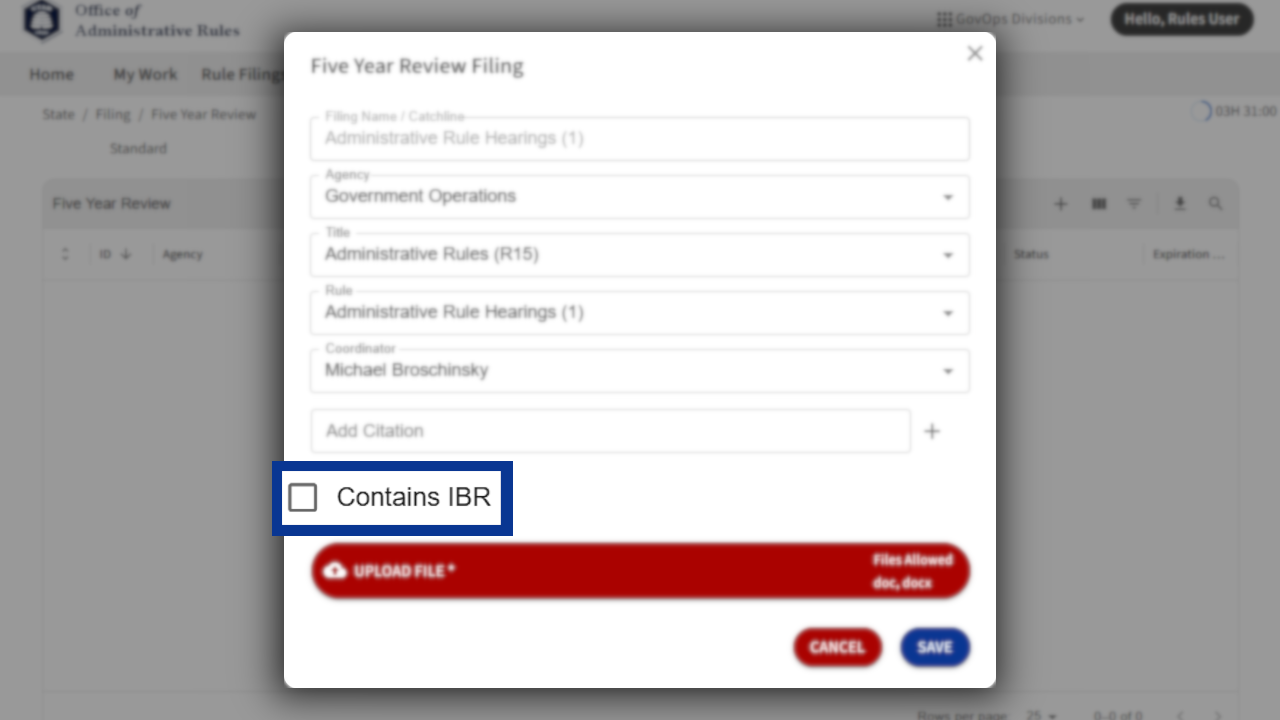
10. Review the responses within the boxes for accuracy. When ready to file, select Upload File and find the desired filing to upload.
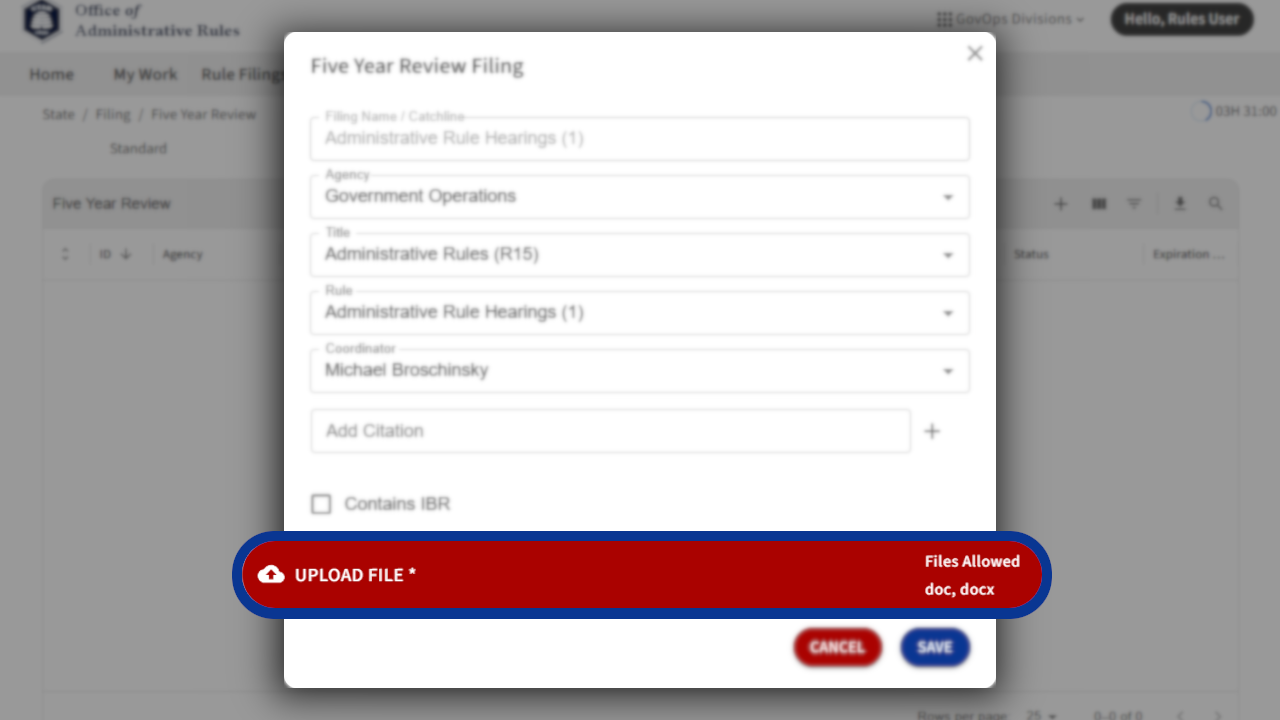
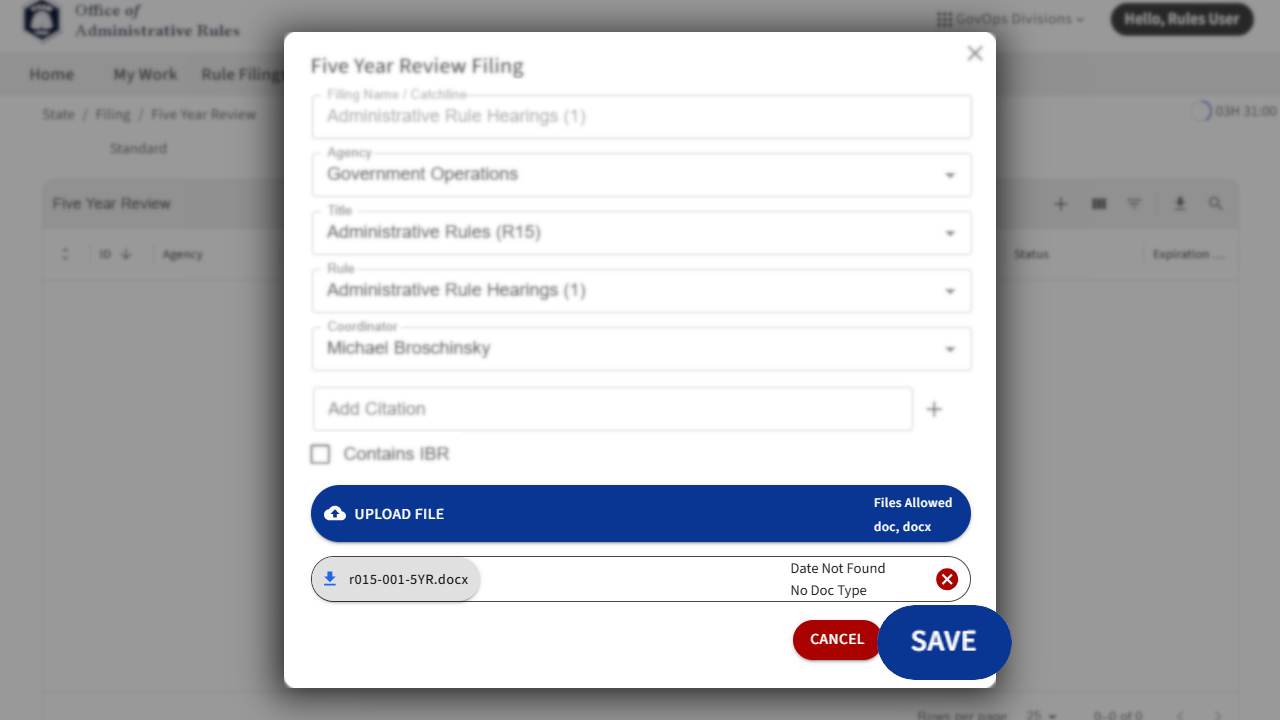
11. Once the filing is uploaded, ensure the Upload File button turns blue and the filename is listed at the bottom of the window, then select Save on the bottom right.
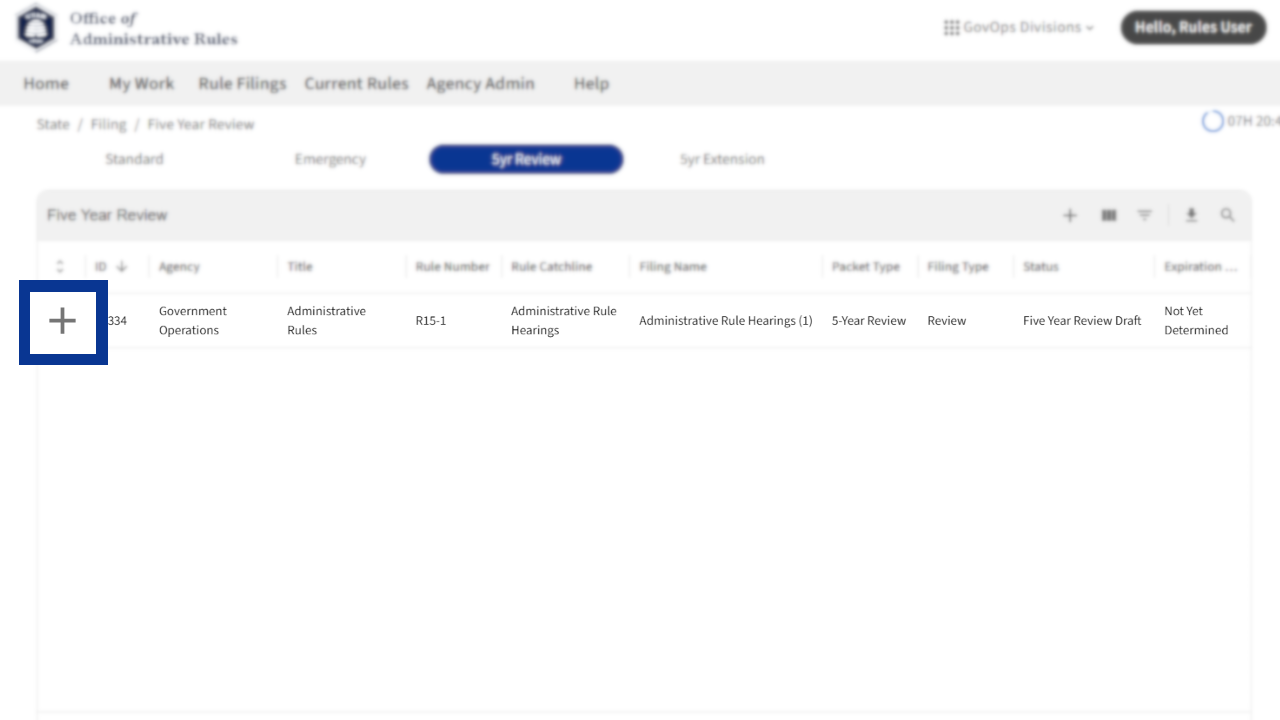
12. The filing will appear as a Five Year Review Draft. Select the + on the left to expand the filing's details.
13. Select Submit to OAR on the right side of the Filing Details menu.
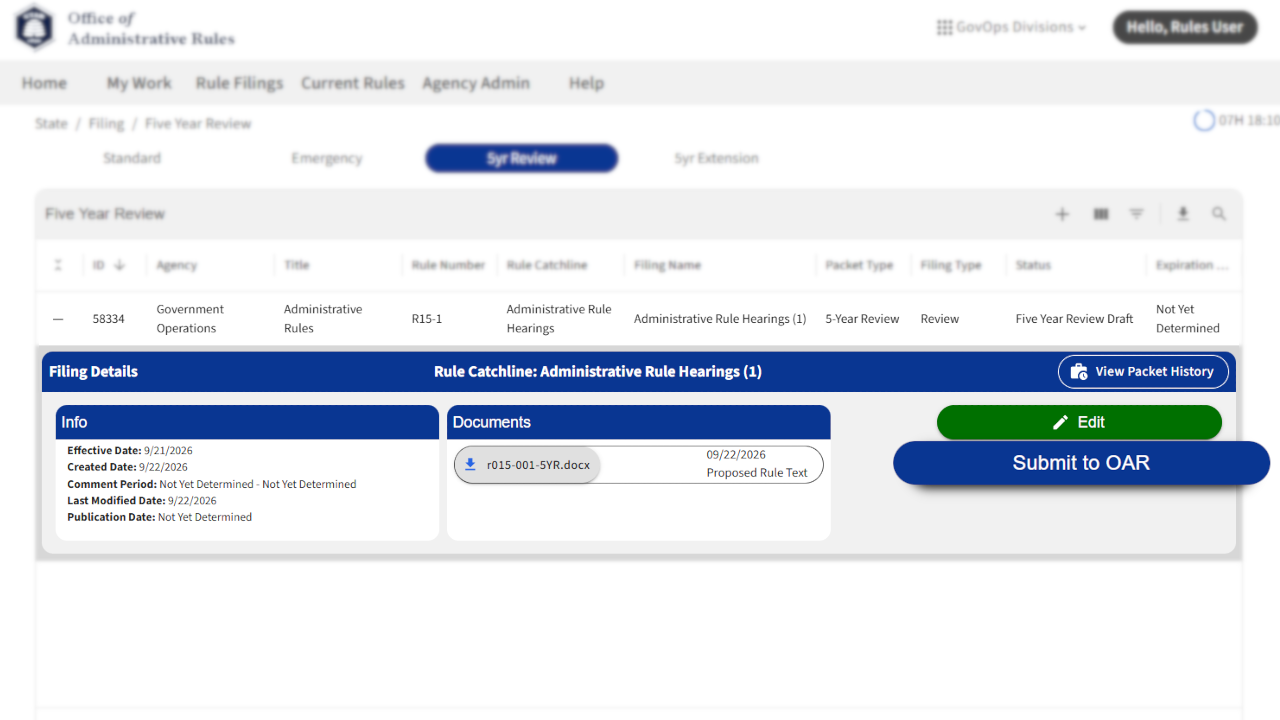
14. Check that the filing has been submitted by making sure that the filing's status is Five Year Review - Under Review. An email will also be sent to users attached to that agency.
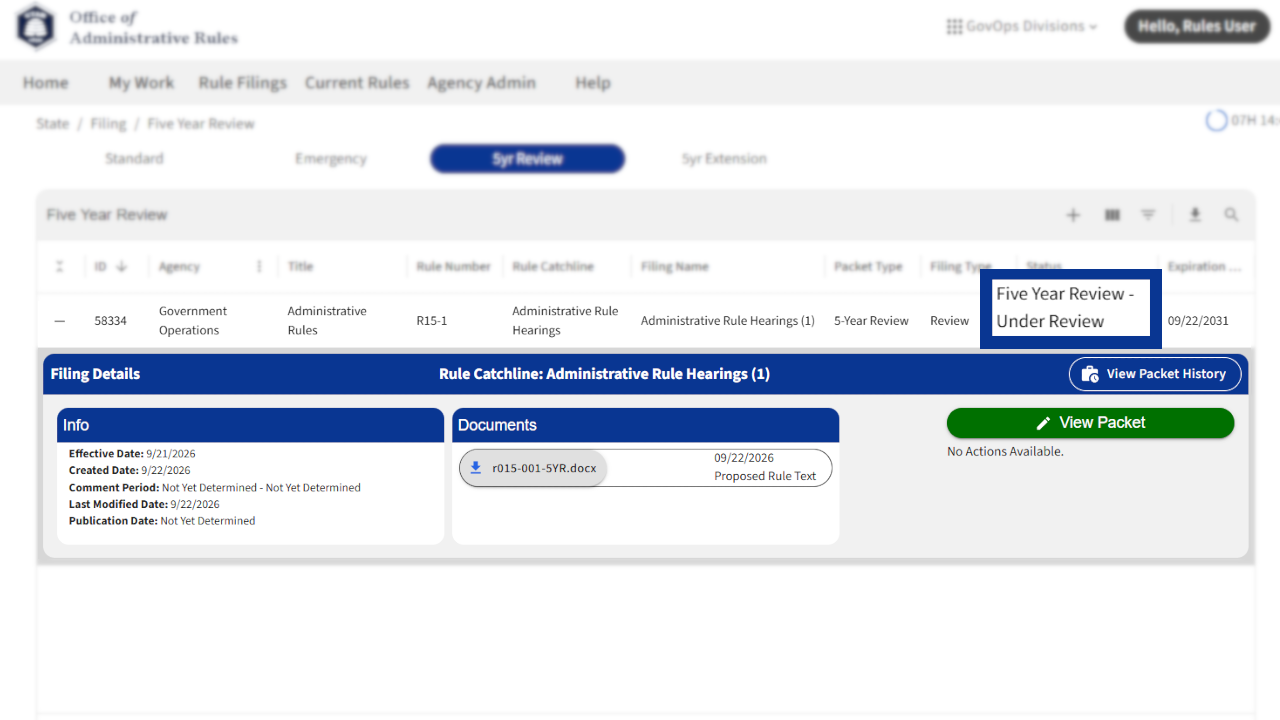
After submitting, the Office of Administrative Rules will begin the review process. Emails will be sent out upon approval or rejection throughout the review process, and the Office may contact the rulewriting agency with questions or comments.
Give feedback about this article
Other eRules Help Articles
File an Emergency Rule
Learn how to file an emergency rule in eRules.
Change eRules Permissions
Learn how to add, remove, or update rule title permissions.
Download Rules and Filings
Learn how to download current rules and filings through eRules.
File a Proposed Rule
Learn how to file a proposed rule filing in eRules.
File a Notice of Effective Date
Learn how to file a Notice of Effective Date in eRules.
File a Five-Year Extension
Learn how to request a five-year review extension in eRules.