File a Five-Year Extension
eRules Help
File a Five-Year Extension
Agencies are required to review administrative rules every five years. A five-year extension provides an agency with an extra 120 days to file a five-year review. Five-year extensions are filed in eRules.
1. Visit eRules and select the Current Rules tab.

2. Using filters or by looking through the list, find the rule for which you're filing a five-year extension.

3. On the right of the desired rule's row, select 5 Year Extension.

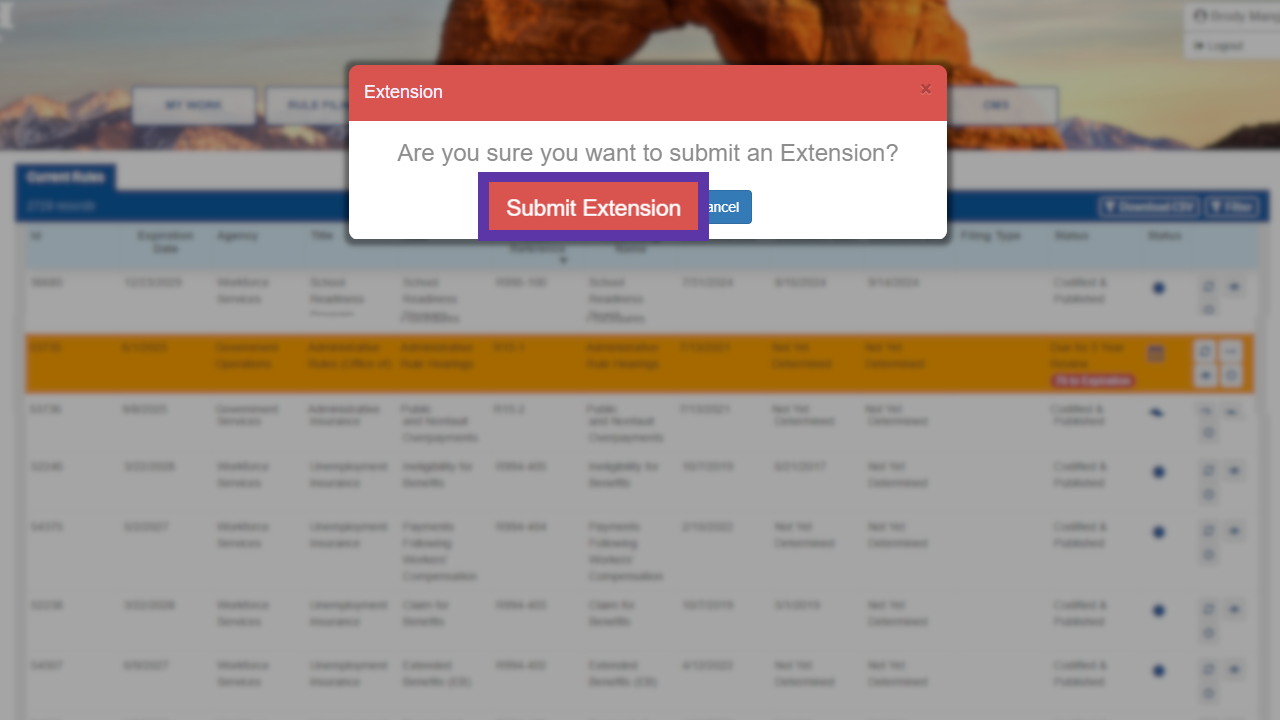
4. A confirmation window will appear. Select Submit Extension.
5. Select the Edit button.

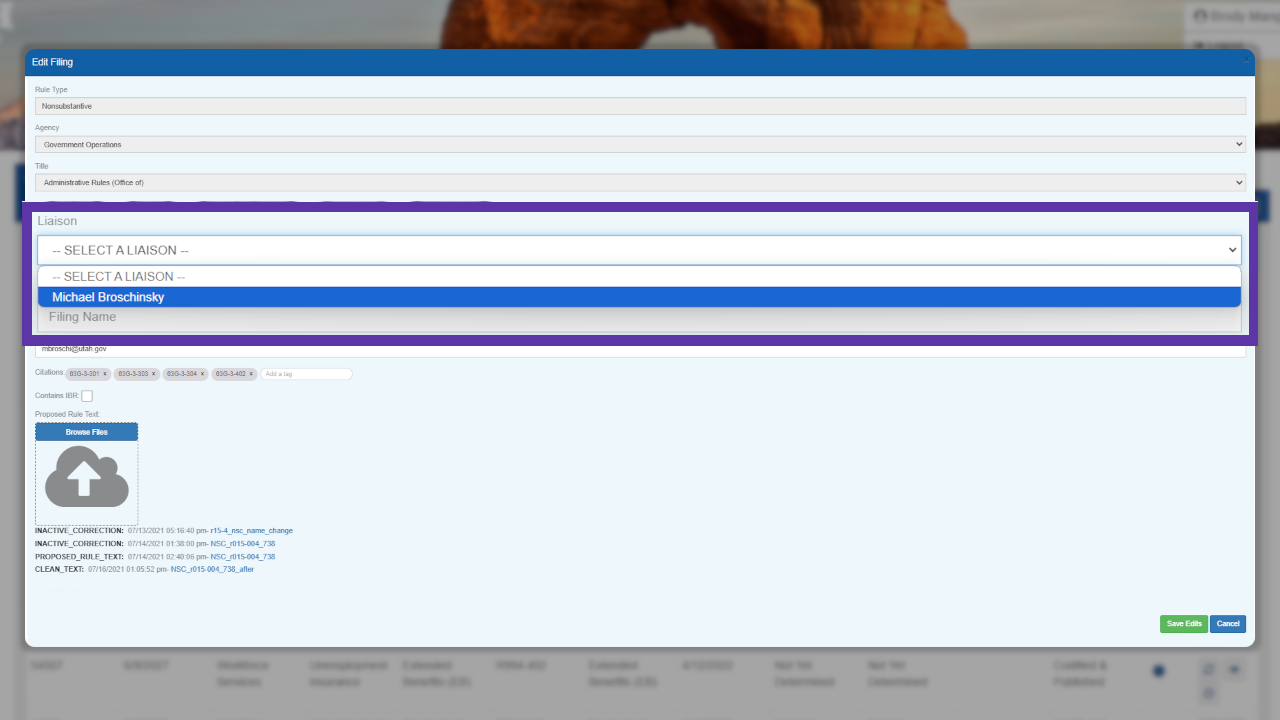
6. Select the proper contact under the Liaison drop-down menu.
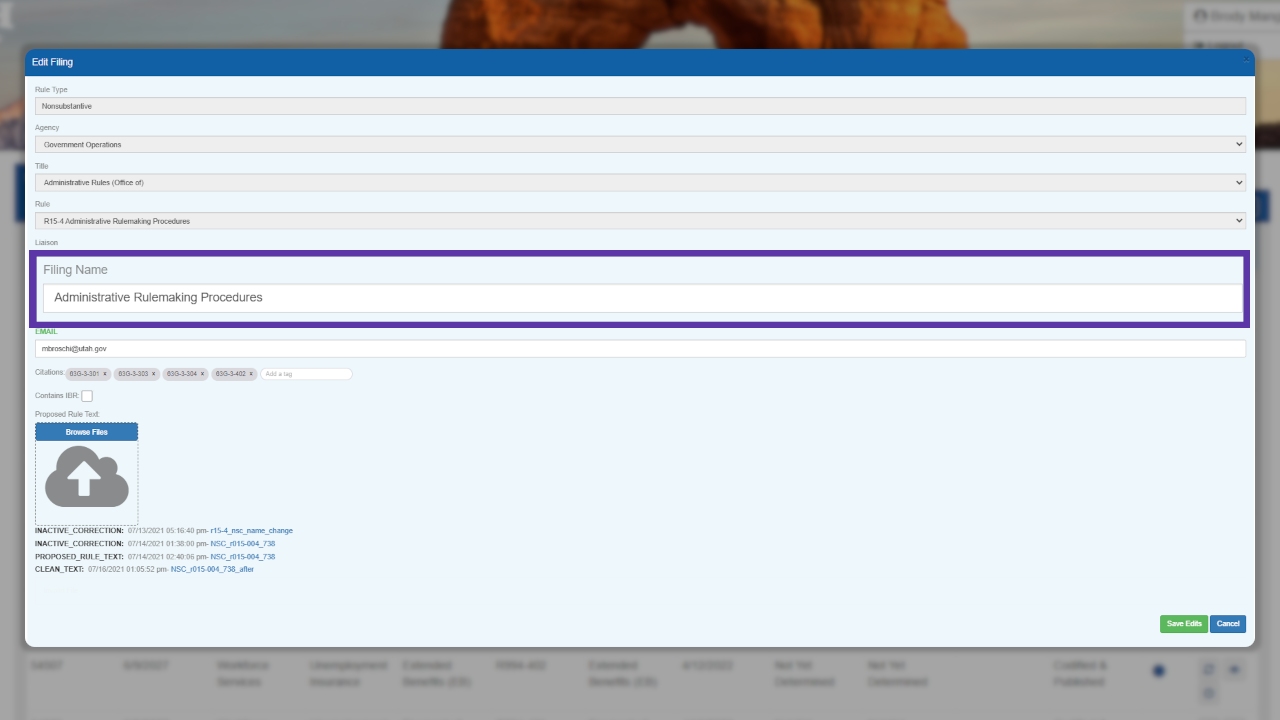
7. Under Filing Name, enter the rule's catchline.
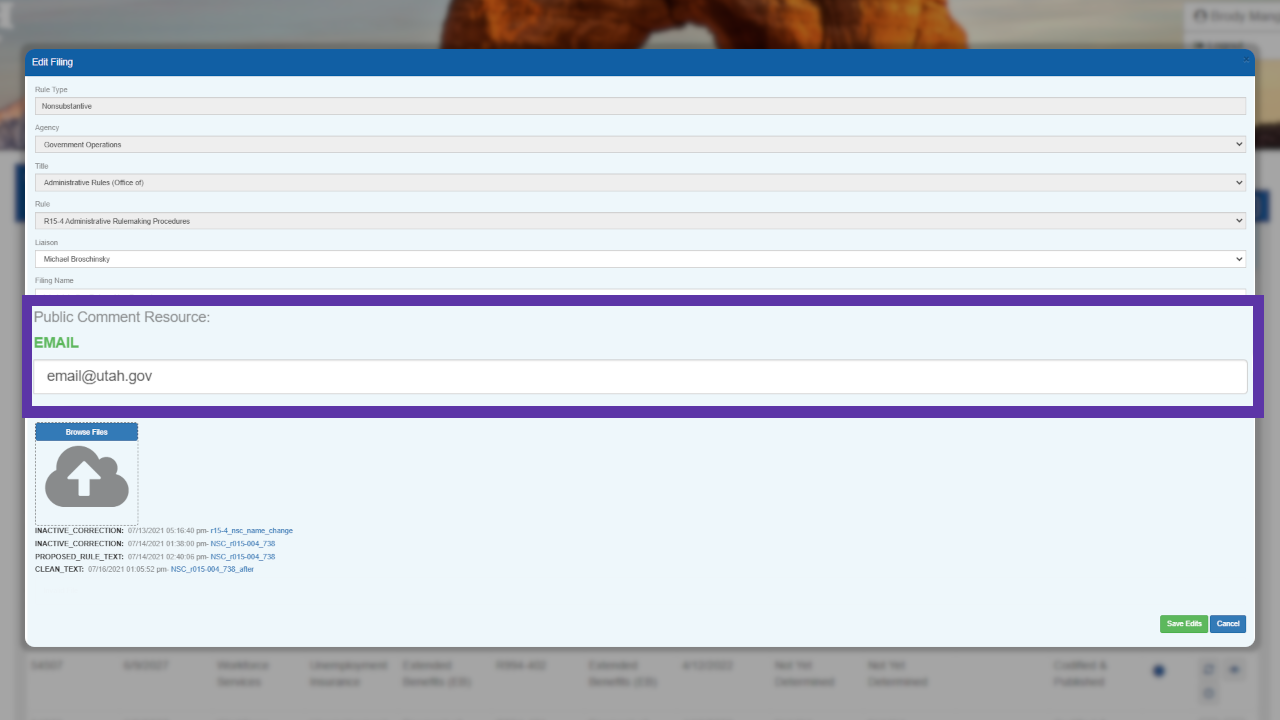
8. Enter the email address of a contact person for this rule under Public Contact Resource.
Note: This email will be used on the public-facing side of the website when a person selects Provide Public Comment.
9. While a five-year extension cannot change citations, ensure that the existing citations are accurate and formatted correctly in the edit menu.

10. Since IBRs cannot be modified by a five-year extension, leave the Contains IBR box as is.
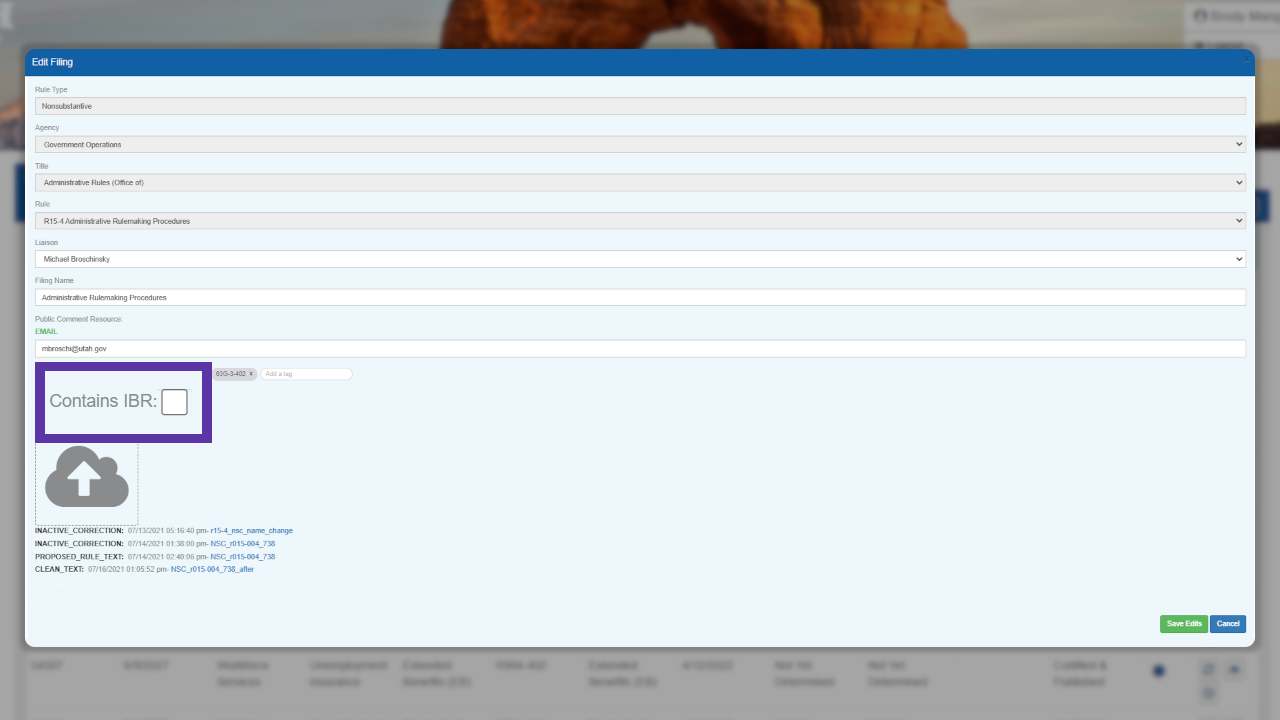
11. Review the responses within the boxes for accuracy. When ready to file, select Browse Files and find the desired filing to upload.
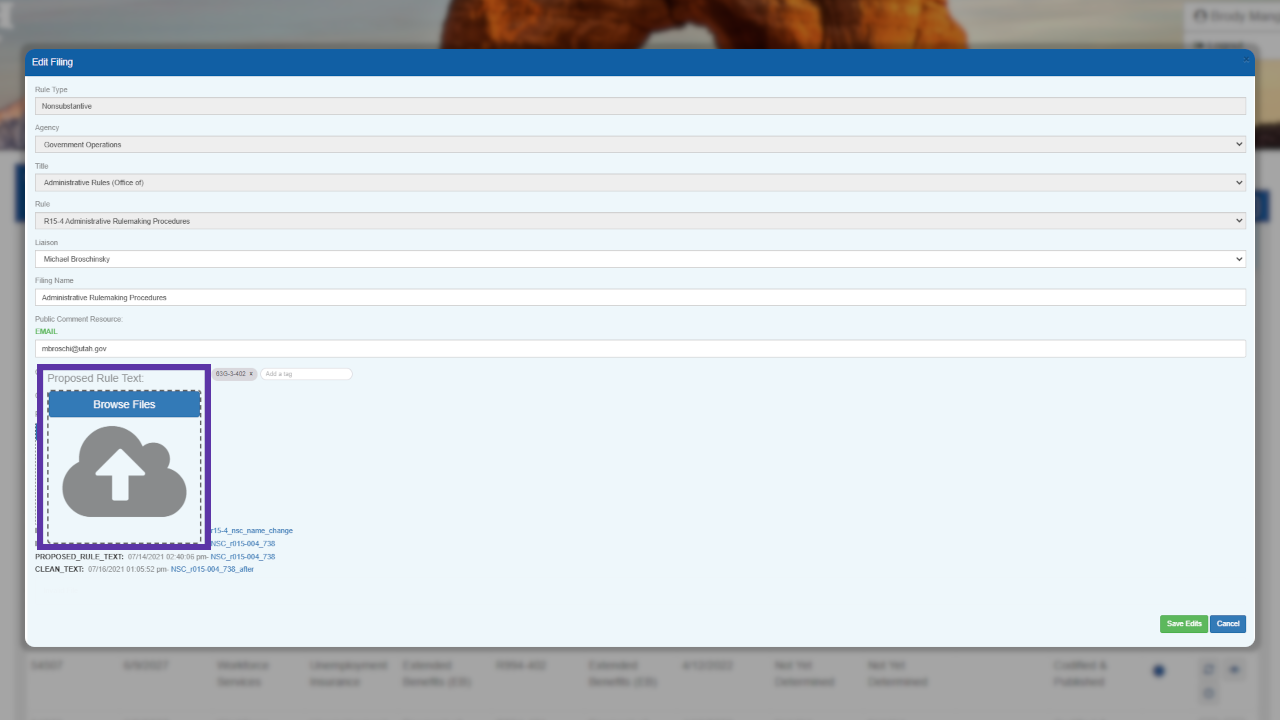
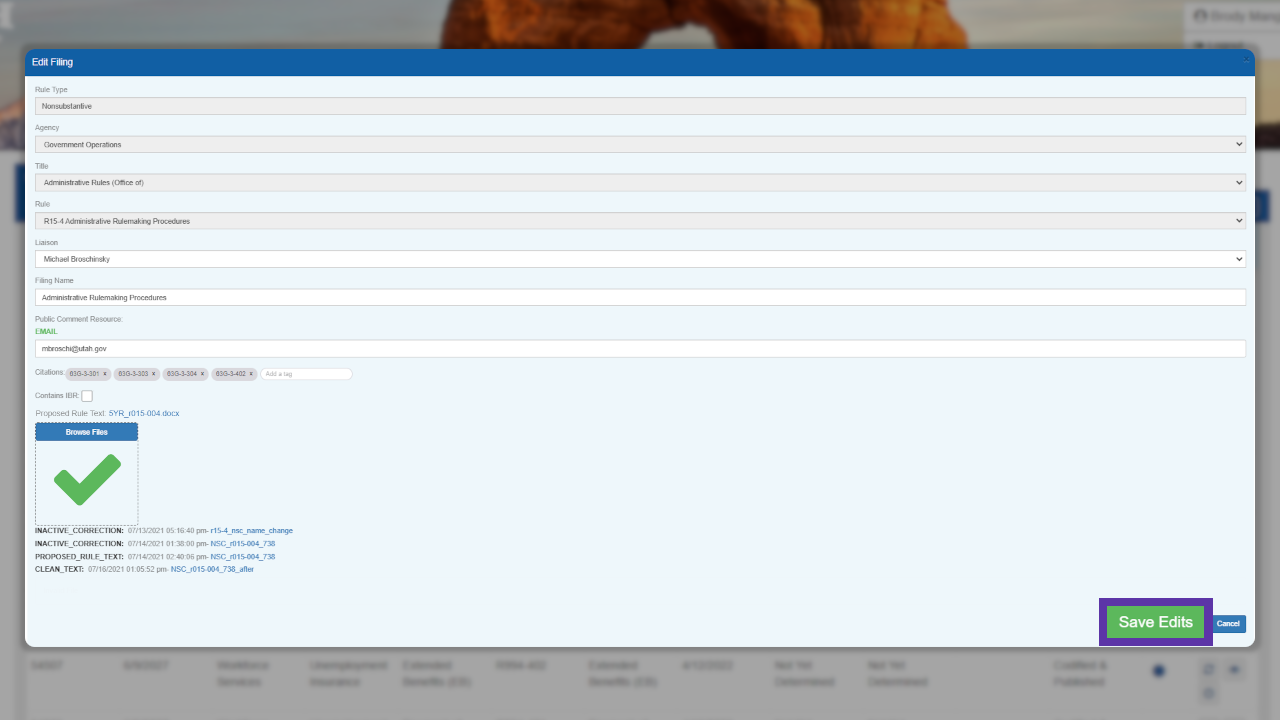
12. Once the filing is uploaded, ensure the cloud turns to a green checkmark, then select the green Save Edits box on the bottom right.
13. The filing will appear as a 5 Year Extension Draft. To submit it for review, select the checkbox on the right.

14. A window will appear confirming submission. Select Submit to Rules.
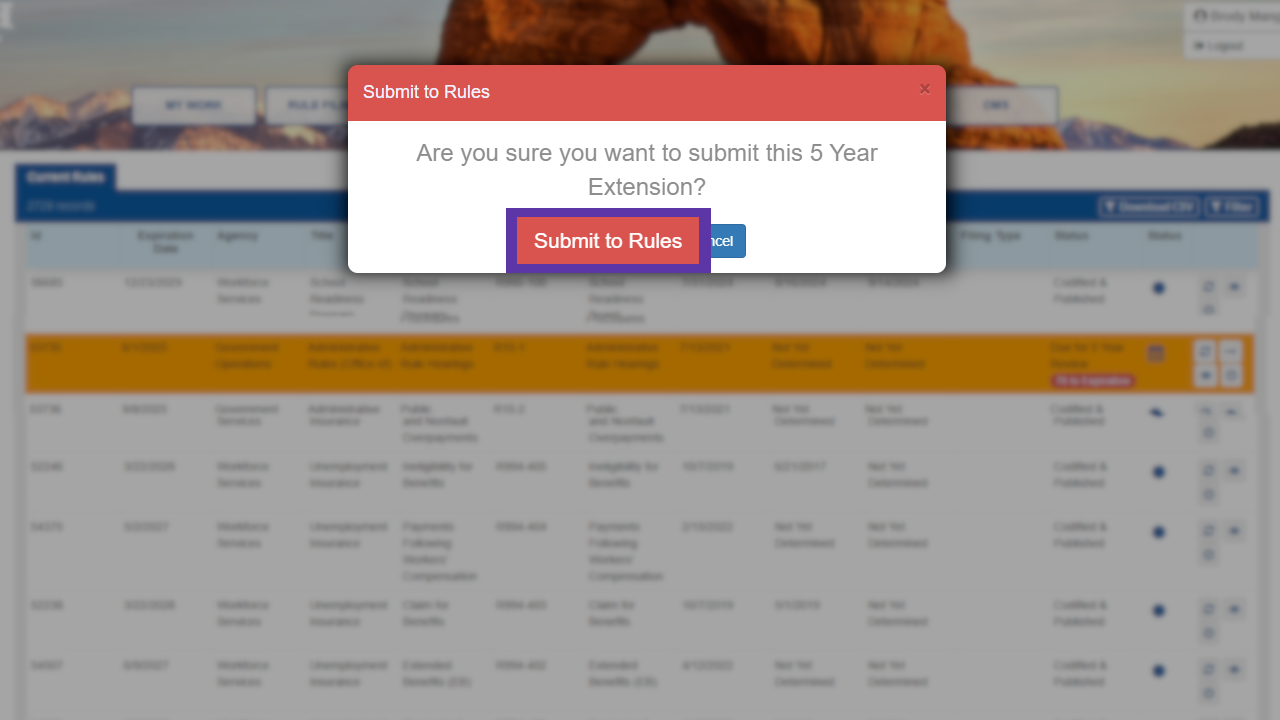
15. Check that the filing has been submitted by making sure that the filing's status is Extension Under Review. An email will also be sent to users attached to that agency.

After submitting, the Office of Administrative Rules will begin the review process. Emails will be sent out upon approval or rejection throughout the review process, and the Office may contact the rulewriting agency with questions or comments.
Give feedback about this article
Other eRules Help Articles
View Rule Filing History
Learn how to view historical rules and filings.
Change eRules Permissions
Learn how to add, remove, or update rule title permissions.
Download Rules and Filings
Learn how to download current rules and filings through eRules.
File a Proposed Rule
Learn how to file a proposed rule filing in eRules.
File a Notice of Effective Date
Learn how to file a Notice of Effective Date in eRules.
File a Five-Year Review
Learn how to file a notice of five-year review in eRules.